
Visitors who click on an ad link to a website are increasingly refusing to accept the cookie policy, which complicates data collection. This means you have less information to analyze and optimize your advertising performance. Google offers a solution called Privacy Sandbox. However, it won’t be available until the end of 2023, and little is known about it right now. In the meantime, specialists can use a special Google Ads feature called Enhanced Conversion Tracking as an alternative.
How Advanced Conversion Tracking Works
Advanced tracking helps you accurately record conversions, allowing you to optimize bidding more effectively. Privacy is maintained throughout. The secure SHA256 one-way encoding algorithm hashes customer data (such as email addresses) before sending it to Google.
The function can only be launched after conversion tags have been configured.
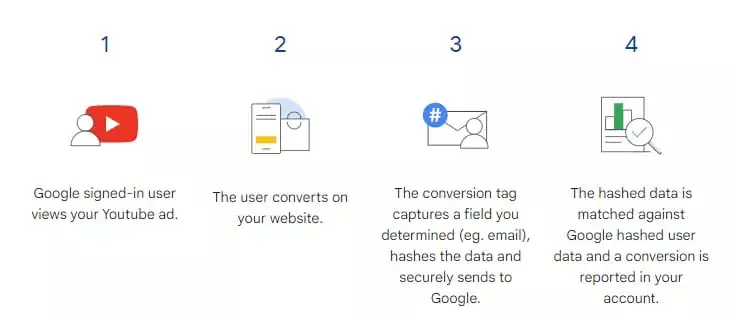
Advanced Conversion Tracking Algorithm:
- The user, logged into their Google account, goes to the website via an advertising link.
- Performs a target action on the website, such as a purchase or subscription. To do this, they must provide contact information: name, email, and phone number.
- These actions are captured by Google Ads tracking tags. They then hash the information and transmit it to the system’s database.
- The algorithm matches the database data with advertising event data. This means that if a user interacts with an ad through the same account and then converts on the website, the conversion will be recorded.
Benefits of Advanced Conversion Tracking
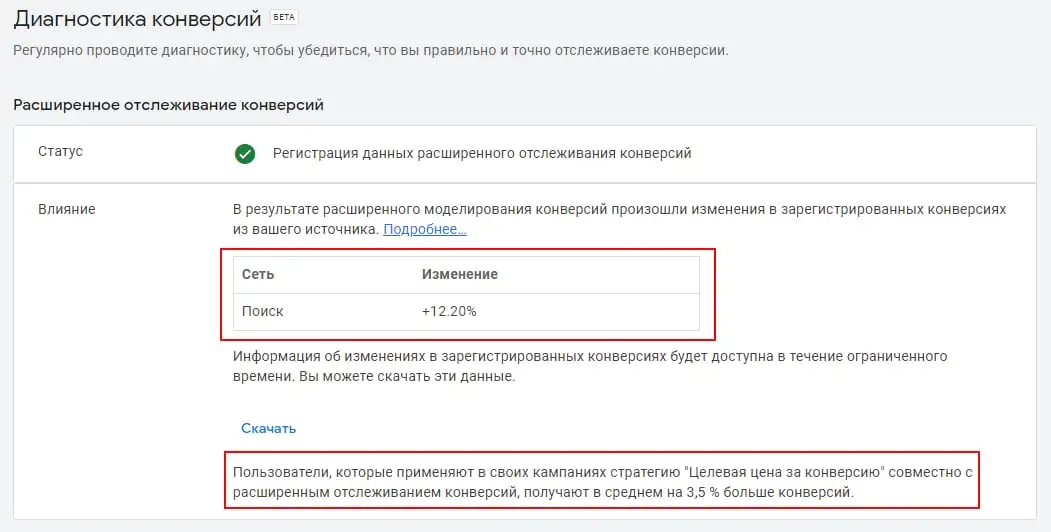
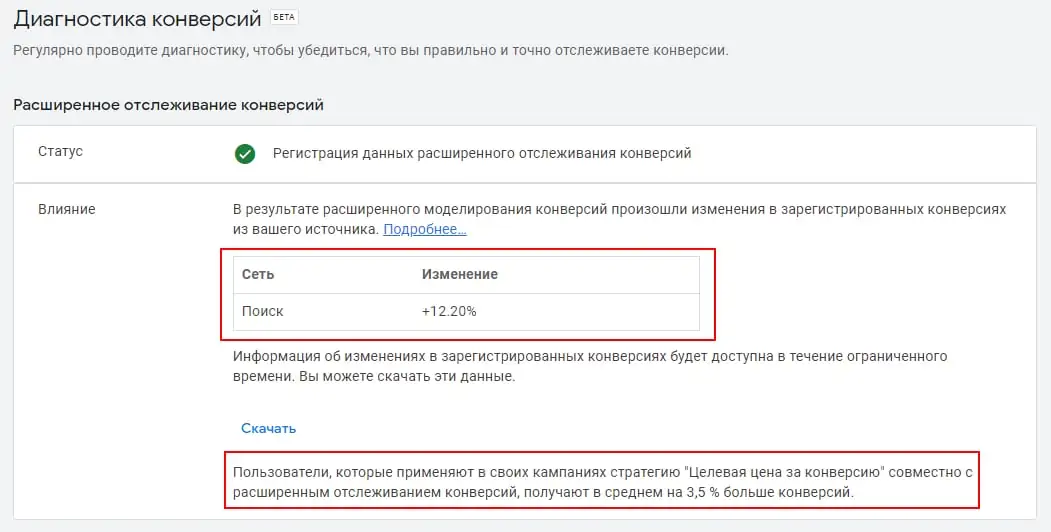
This feature allows you to record conversions that would otherwise go unaccounted, including post-view conversions (conversions that don’t involve clicking an ad link). According to Google, using advanced tracking, you can record an average of 3.5% more conversions, and the share of post-view conversions recorded can increase to 30%.
Accordingly, you will receive:
- More accurate data to optimize bidding;
- the ability to correctly evaluate results and make more correct strategic decisions;
- Privacy protection by hashing collected customer data.
How to set up advanced conversion tracking
There are three ways to set up this feature, depending on your conversion tracking method:
- Manual setup via Google Tag Manager. If you’re tracking conversions using GTM.
- Via a Google tag. If you use a Google tag for tracking, and it’s added directly to your website pages, rather than through third-party tools or iframes, some changes to the tag’s configuration will be required.
- Via the Google Ads API. If you want to transfer data for advanced conversion tracking via the API.
I’ll go into more detail about the first method, as it’s the easiest to implement and doesn’t require any modifications to the site’s code.
As a reminder, your website should already be configured to track Google Ads conversions using Google Tag Manager.
Important! If you’re tracking conversions through Google Analytics and importing data into your Google Ads account, this isn’t enough to set up enhanced tracking. For it to work, you’ll need to create a new conversion action in Google Ads using GTM or a Google tag.
Setting up advanced conversion tracking in your Google Ads account
Go to “Tools” – “Tracking” section – “Conversions”.
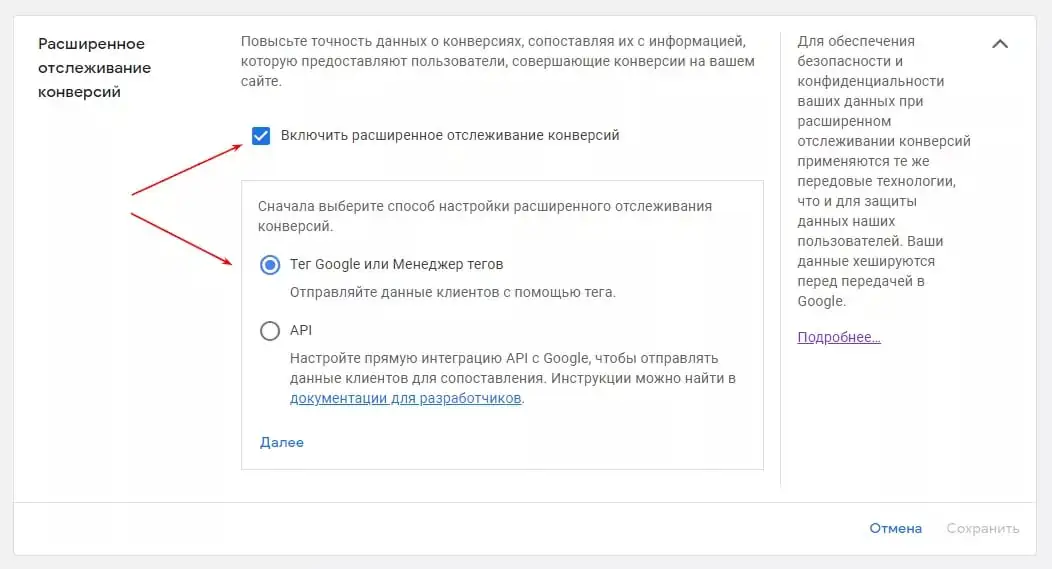
Find and select the conversion event for which you want to set up advanced tracking. At the bottom of the “Advanced Conversions” section, click “Enable Advanced Conversion Tracking.”
Please be sure to read the Customer Data Compliance Statement and agree to the terms.
Click “Check URL” to check your website for the Google tag.
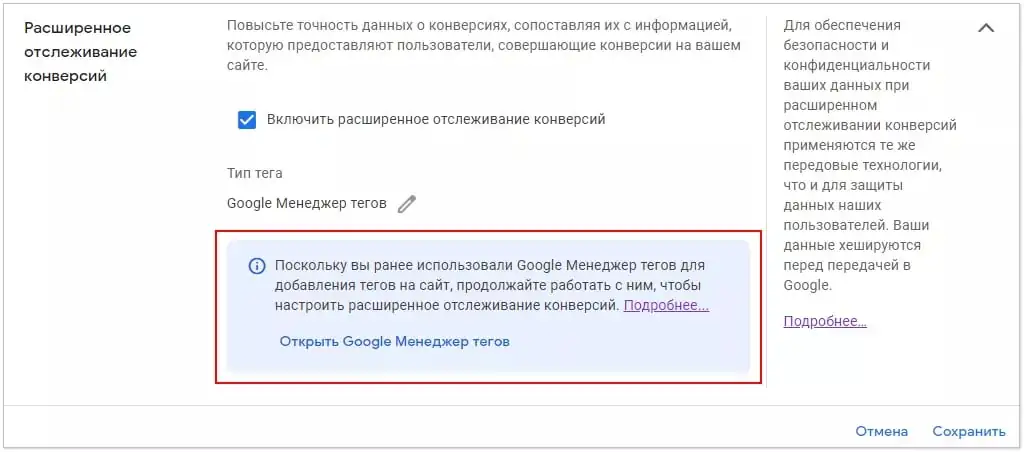
Further work will continue in GTM.
Setting up advanced conversion tracking in Google Tag Manager
Go to the Google Tag Manager interface and continue with the setup.
There are several options:
- you already have unhashed variables in your DataLayer;
- using data level variables;
- using CSS selectors.
Find and select your Google Ads conversion tracking tag and check the box next to “Include user-provided data from your website.”
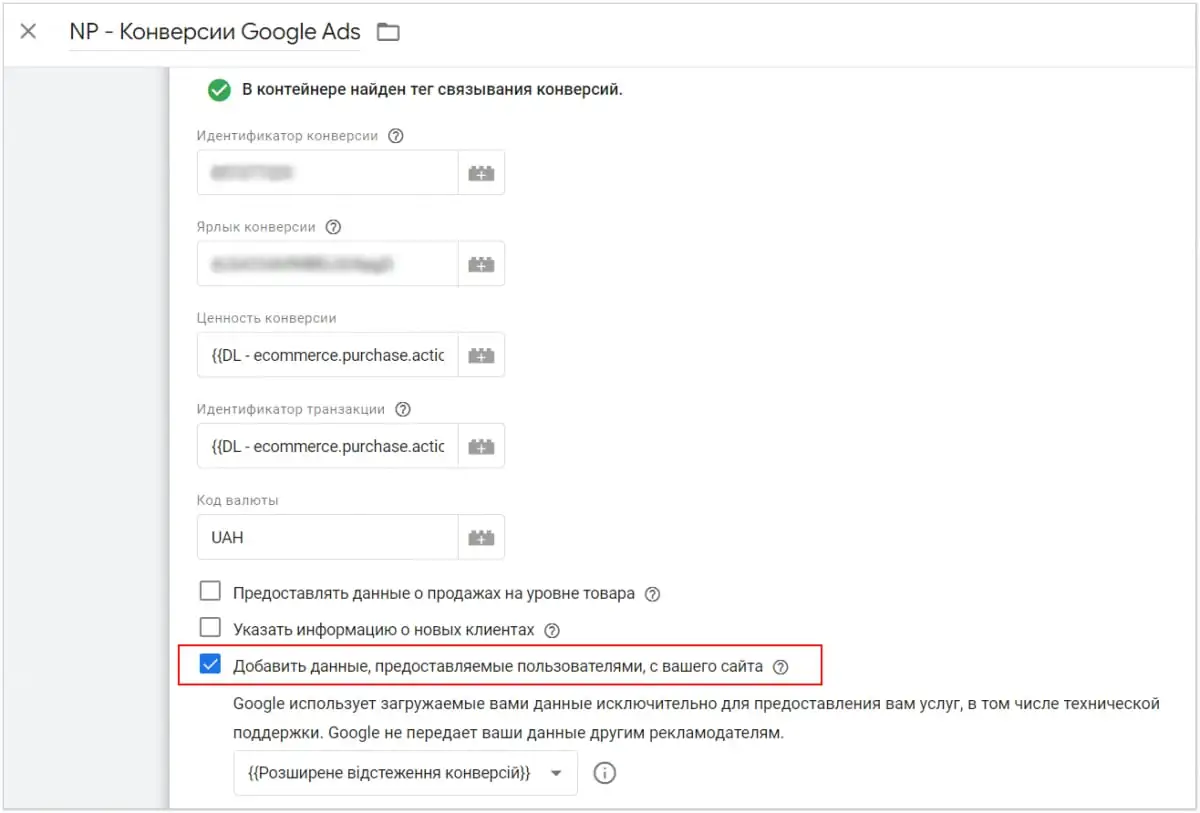
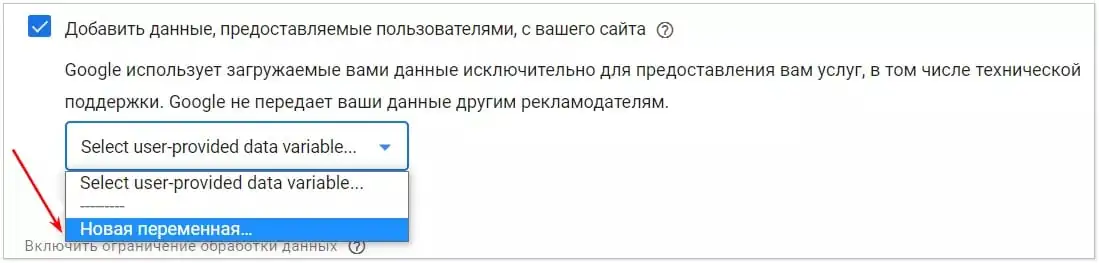
Next you need to create a new variable.
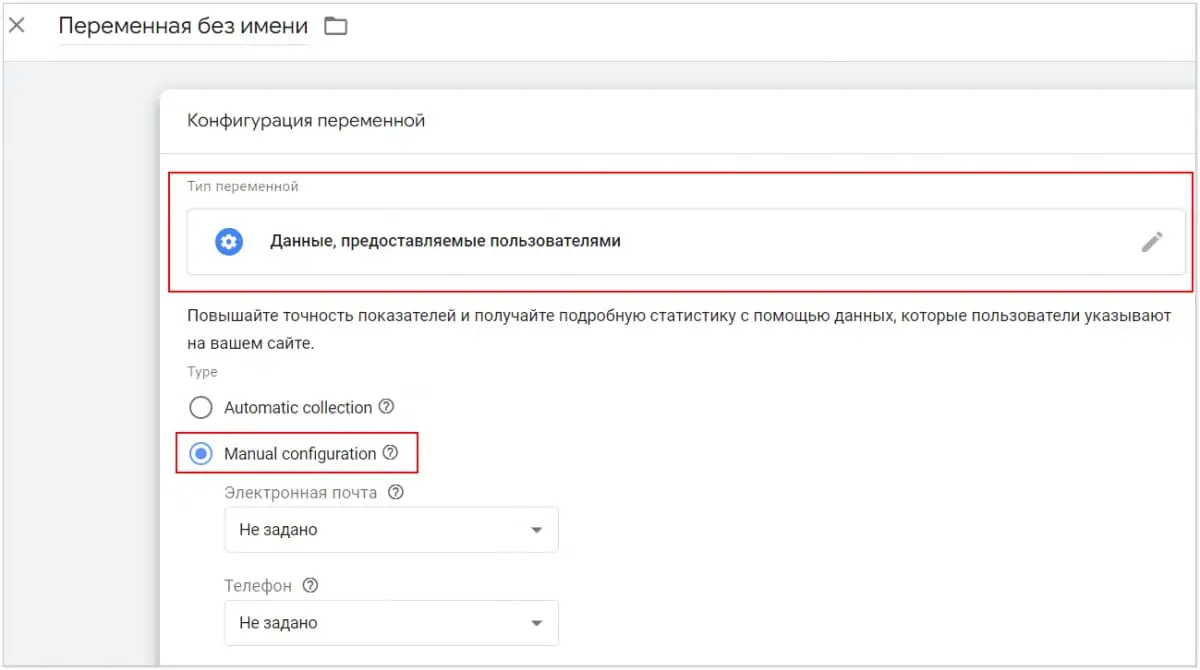
Give the variable a name and select the variable type (if not selected by default) “User-provided data”.
After that, select Manual configuration.
The list below shows all the user data fields that can be sent using the enhanced conversion tracking tag.
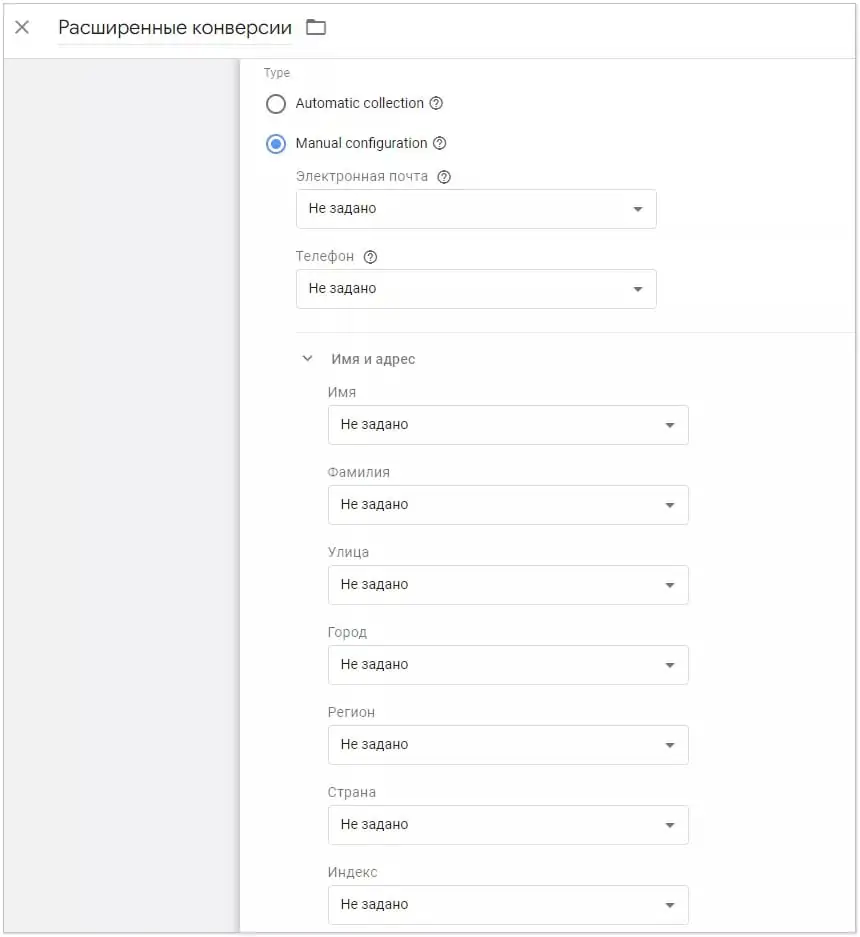
Please note that you need to create a separate variable for each field whose data you want to transfer. This means two different variables for email and phone number. To do this, as a reminder, select “New Variable” from the drop-down menu.
Configuration option with DataLayer
If you already have unhashed variables in your DataLayer (whether using CSS selectors or other types of variables), you can select them instead of creating new variables.
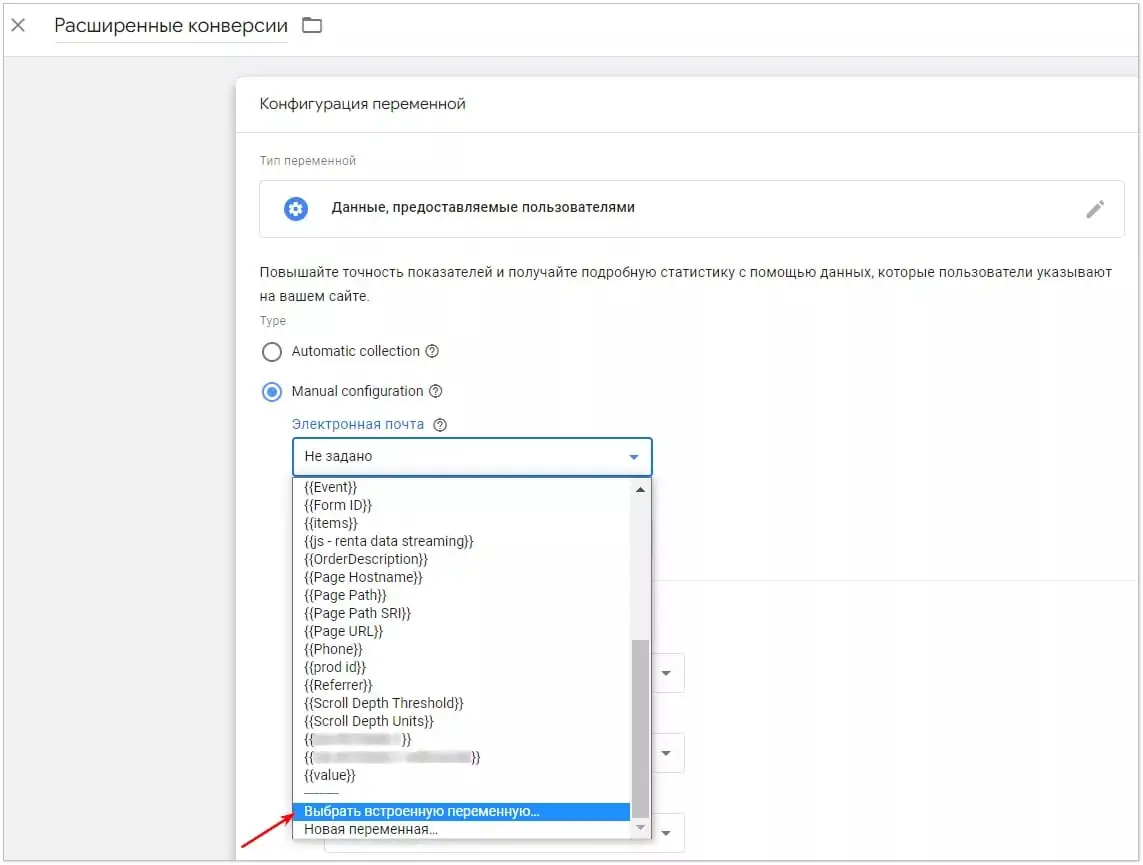
Important! If you’re tracking conversions through Google Analytics and importing data into your Google Ads account, this isn’t enough to set up enhanced tracking. For it to work, you’ll need to create a new conversion action in Google Ads using GTM or a Google tag.
Customization using data-level variables
If you frequently change your website code, especially formatting or CSS selectors on the conversion page, I recommend using data layer variables. Such changes can disrupt your conversion tracking setup using CSS selectors.
If the required user data variables are missing, use the following technical specification for programmers.
Terms of Reference for data transfer for advanced conversion tracking in Google Ads:
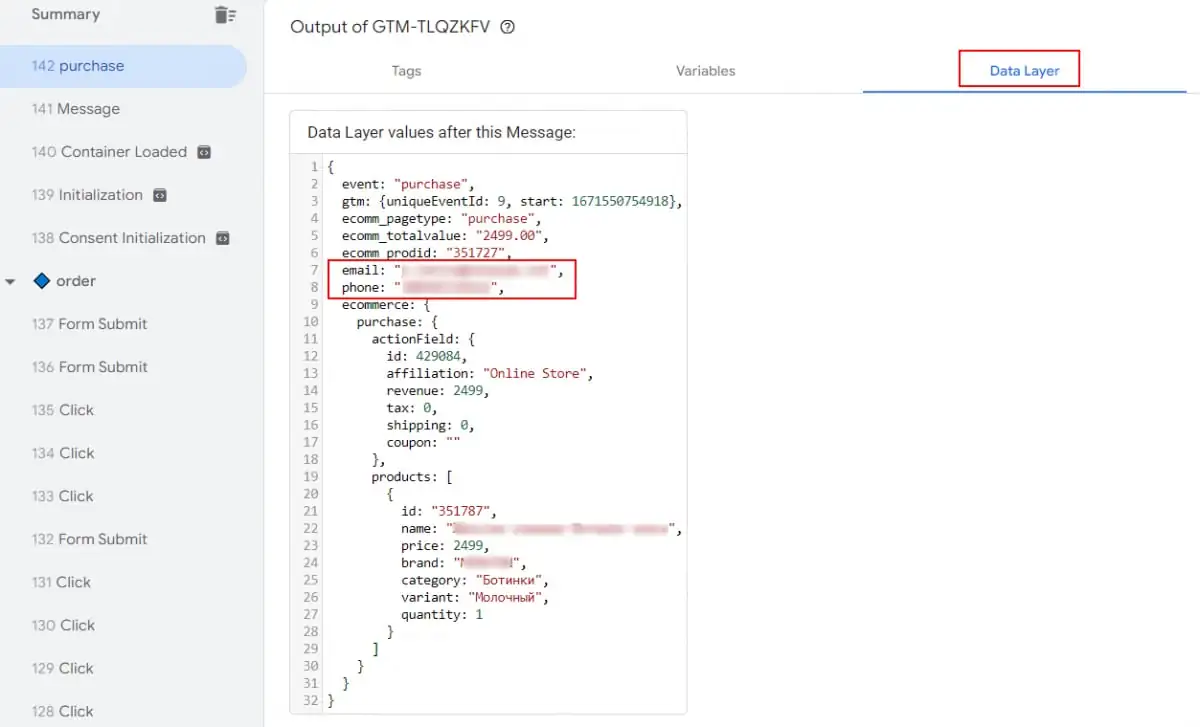
It’s necessary to implement the transfer of additional variables during the “purchase” event. This event is triggered when the user navigates to the “Thank you for your order” page and when a successful one-click purchase is made.
window.dataLayer.push({
event: \”purchase\”,
’email’: ‘REPLACE_WITH_STRING_VALUE’,
‘phone’: ‘REPLACE_WITH_STRING_VALUE’
});
<wpml_root/>
The email and phone variables must be dynamically populated with the email and phone number of the user who made the purchase.
Create variables for email and phone by selecting the “Data Layer Variable” variable configuration.
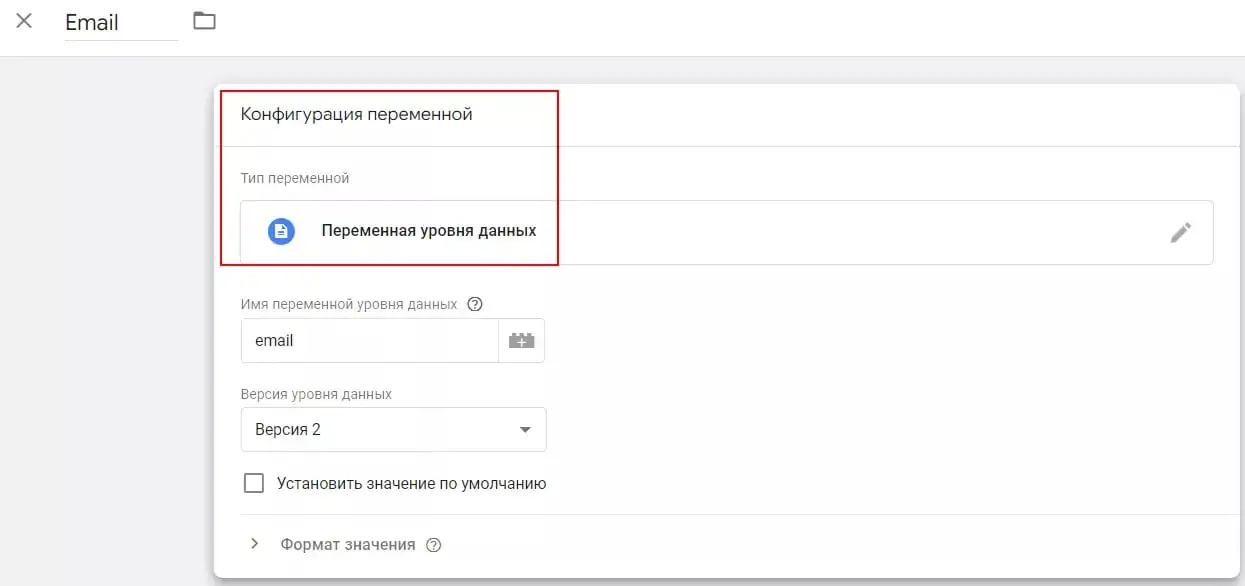
Select data level variables when setting up advanced tracking.
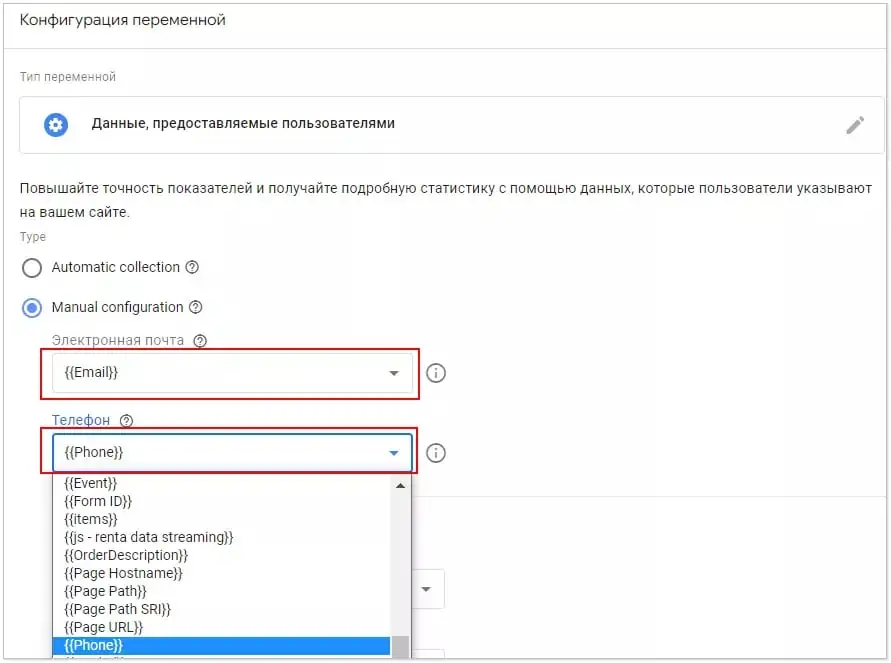
Customization using CSS selectors
If the option of using data-layer variables is not available to you, you can customize it using CSS selectors.
Let’s return to the step where you started creating new variables for email and phone. After that, select “DOM Element” as the variable type in the “Variable Configuration” field.
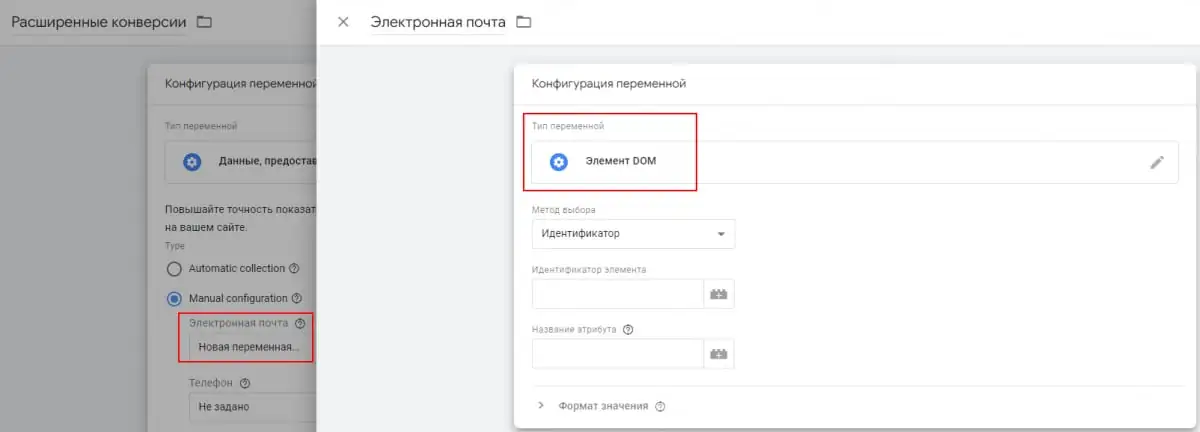
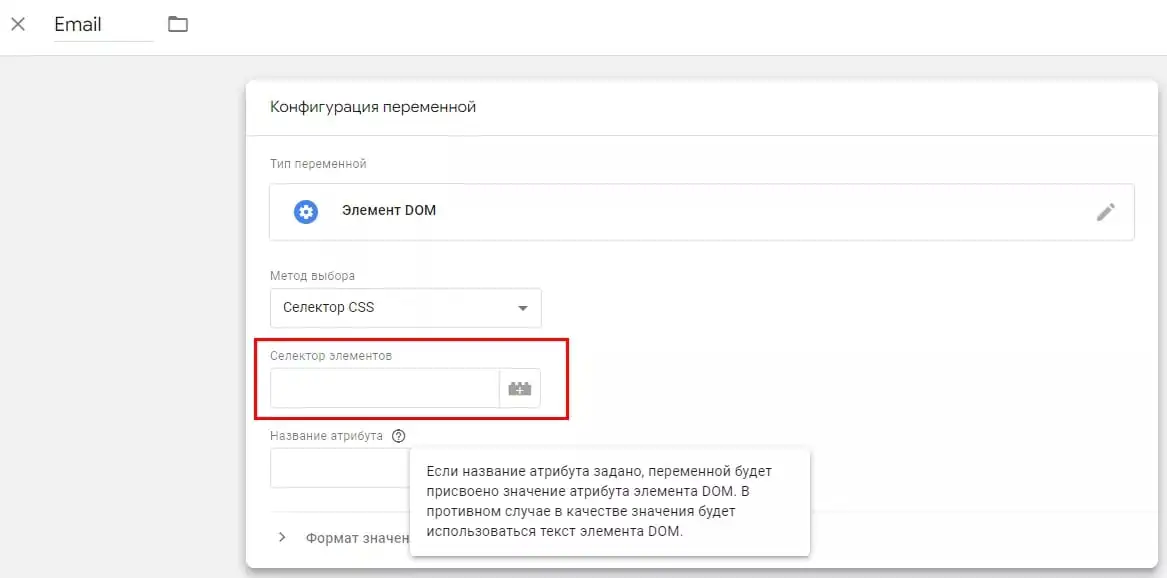
Return to the Variable Configuration screen, and from the Selection Method drop-down list, select CSS Selector.
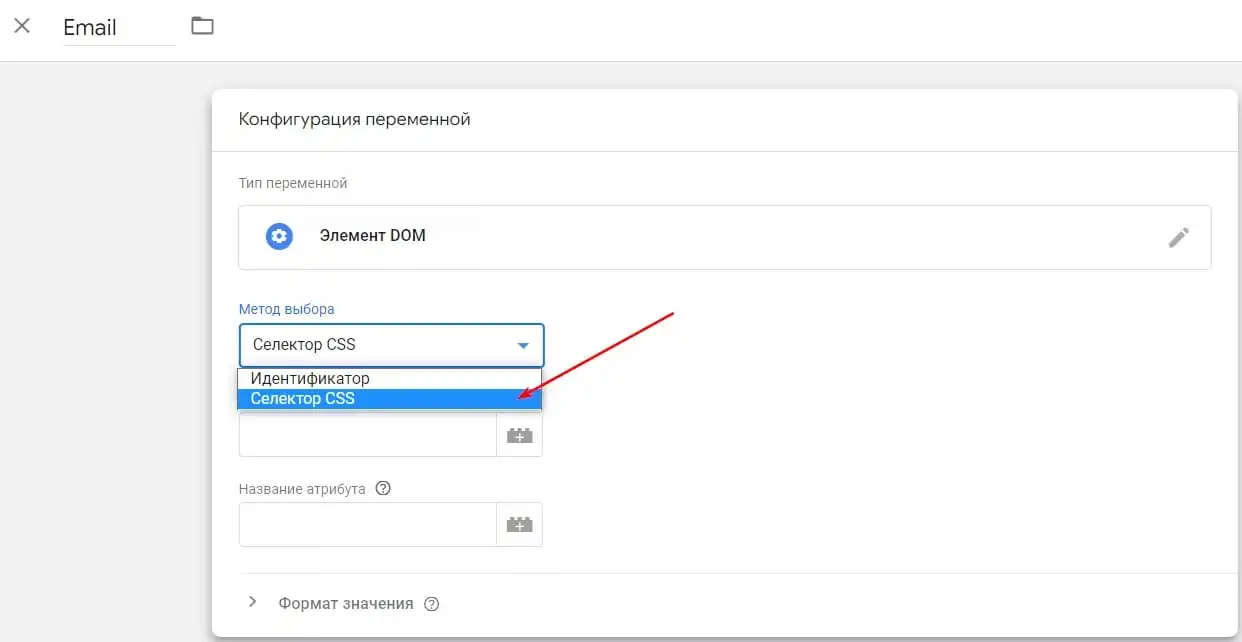
Paste the CSS selector that references your user data into the “Element Selector” input field. The “Attribute Name” field can be left blank.
Here’s what your advanced conversion tracking variables will look like, regardless of the setup method you choose.
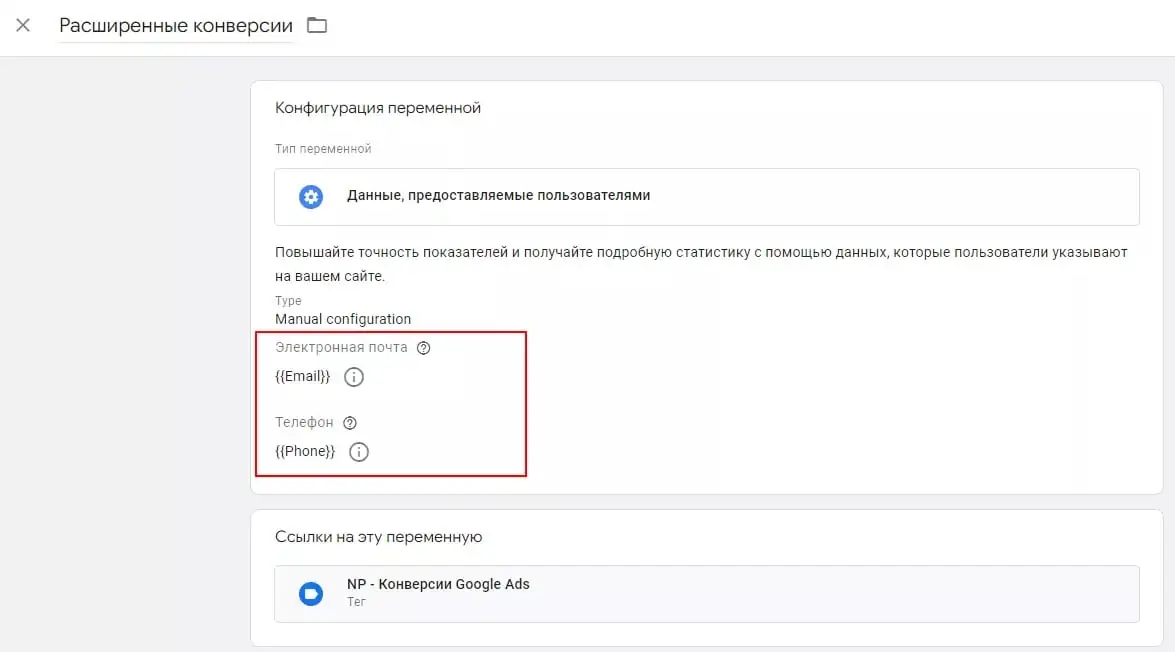
Save and publish the changes.
Checking the settings
Before publishing, check your settings using the changes preview mode in GTM.
If the data is sent correctly, you will see the following information if the order is successfully placed.
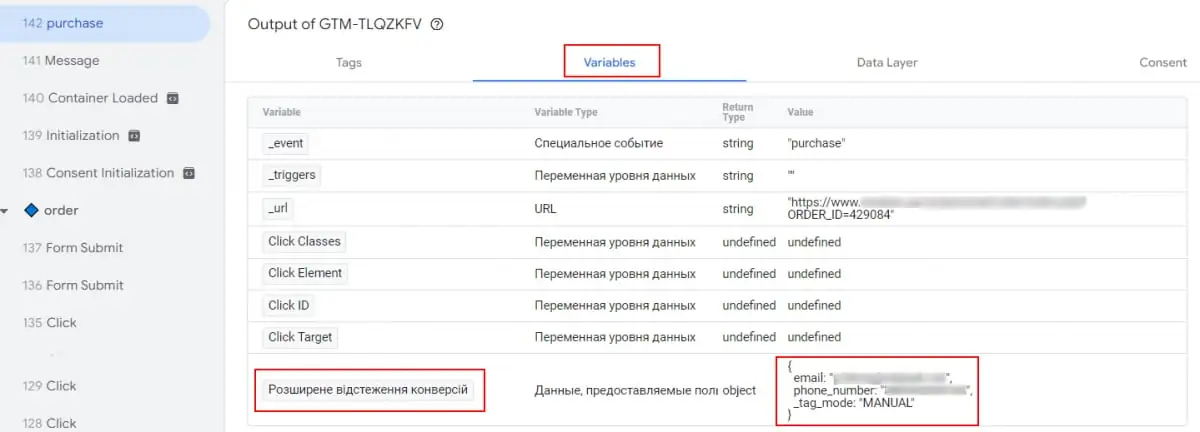
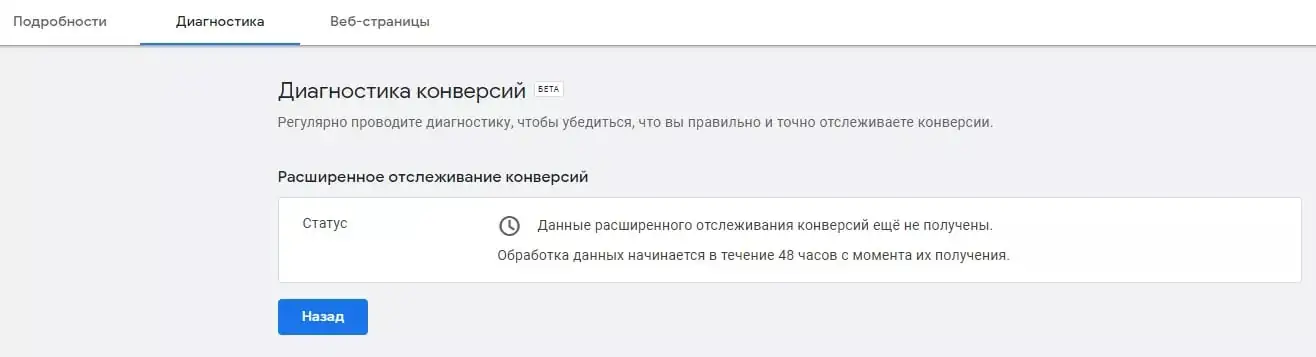
It will take some time for you to see results in your Google Ads account. The first data will be added to the system within a few days, and changes to reports will appear within 30 days.
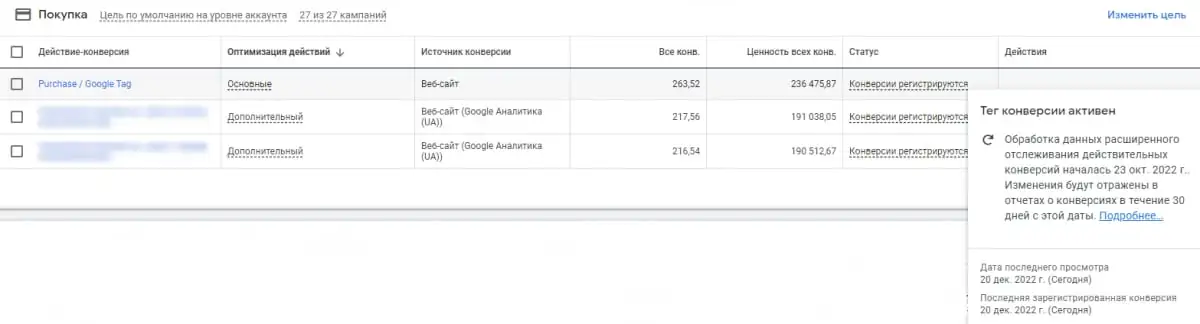
If the data is being sent correctly, you will see the status “Conversions are being recorded.”
Once your enhanced conversion tracking data is processed, it will appear in your reports.

You can see the impact of using this feature on the Diagnostics tab.
Conclusions
If you block cookies on your site, the enhanced conversion tracking tag will begin collecting more data and recording conversions in your Google Ads account.
This will allow the system to improve the performance of smart bidding strategies and track more complex visitor interactions with your site across devices.
Therefore, using advanced conversion tracking will improve the efficiency of optimization and the performance of advertising campaigns.
You can configure this feature only if you have a conversion tag on your website.
Source: Netpeak.net