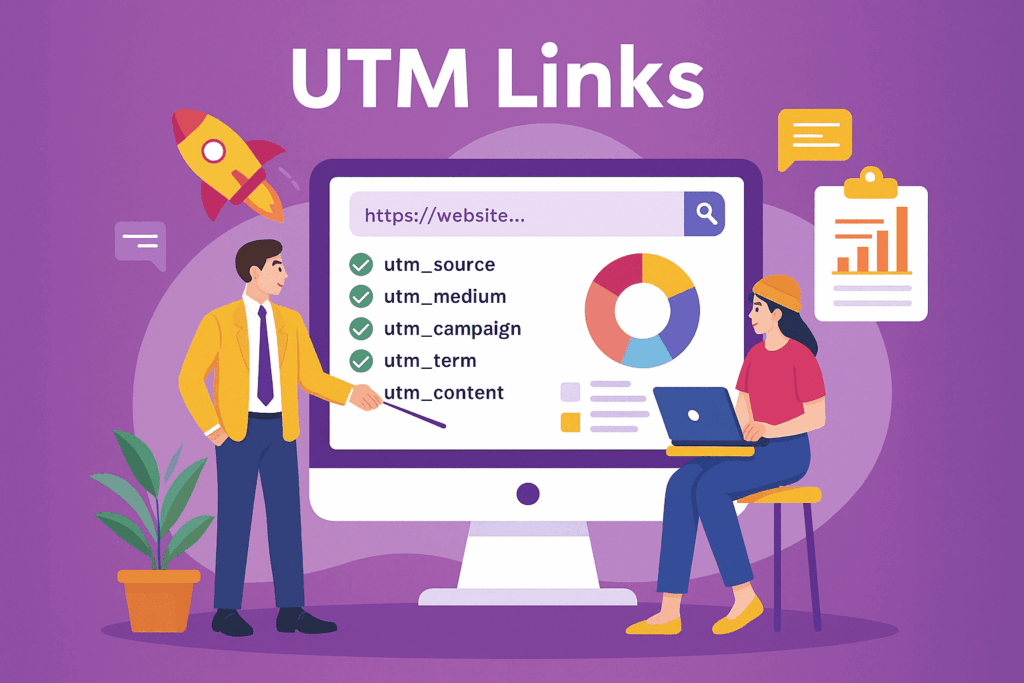
Traffic analysis is an essential tool for improving website performance. Google Analytics 4 helps identify traffic sources: social media, search engines, advertising, organic traffic, etc. But UTM tags help you track clicks more precisely—to a specific page, link, keyword, or specific marketing campaign.
- What do UTM tags consist of?
- Tag types: mandatory and optional UTM data
- UTM tag syntax
- Dynamic Parameters: How to Make Working with UTM Tags Easier
- How to view UTM tag statistics in GA4
- How to Generate UTM Tags — Google Generator and Google Sheets
- Useful tips and tricks for working with UTMs
- Common Mistakes in UTM Markup
- Use UTM parameters only for external links.
- Results
What do UTM tags consist of?
UTM parameters are code snippets that can be added to the end of a URL. These parameters can be used with analytics platforms like Google Analytics 4 to better track user behavior after they click on a link.
Technically, a label is added to a URL using a GET parameter. It passes data into the URL in name-value format.
Example with UTM tag:

Where:
- utm_source , utm_medium and utm_campaign – parameters;
- netpeak , cpc , and school-goods — meaning. The tag values themselves will tell you where the user came from.
Let’s look at another example:

This UTM tag allows you to understand that:
- the user came to the site from the Google search engine ( utm_source=google );
- through the banner advertising channel with payment per impression ( utm_medium=display );
- Clicked on an ad from the coffee_maker advertising campaign ( utm_campaign=coffee_maker ).
Interesting fact. The acronym UTM (Urchin Tracking Module, Urchin Traffic Monitor) is a reference to the company Urchin, which was acquired by Google in 2005 and later renamed Google Analytics. Their development, the UTM tag, has become the standard for web analytics.
Tag types: mandatory and optional UTM data
There are mandatory and optional tags. I’ll talk about the former.
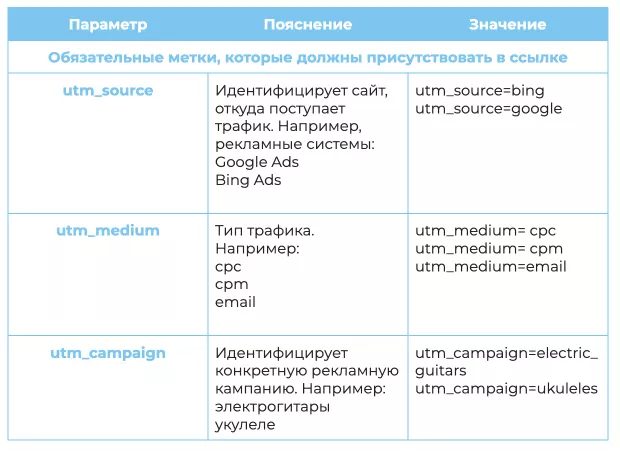
Also in Google Analytics 4, you need to use the additional utm_id parameter to measure ROI on non-Google campaigns.
Optional parameters:
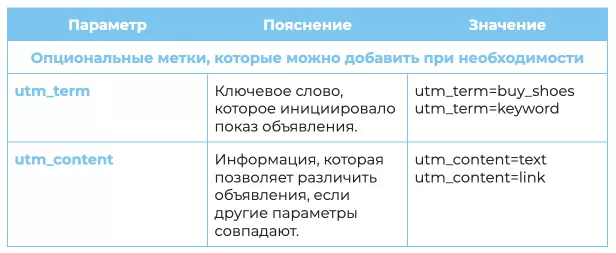
For most tracking purposes, the basic parameters are sufficient.
UTM tag syntax
Try generating a UTM tag. Its syntax is straightforward:
- between the key and its value there is a sign “ = ”;
- Parameters are separated from each other by the ” & ” sign.
Let’s say there’s a website with a blog on various subdomains. The goal is to find out how many users visited the site via an advertising banner from a blog article.
The algorithm includes two steps.
- Enter the UTM name followed by the ‘=’ sign.
- Specify the value of the parameters.
Don’t forget about the basic parameters of the label:
- utm_source — source;
- utm_medium — advertising type;
- utm_campaign — campaign name;
- utm_content — ad or transition.
Form a mark.
- Enter the page URL: https://yoursite.com/product/ .
- Next, start forming the UTM tag by adding the “?” sign: https://yoursite.com/product/ ? .
- Next comes the utm_source parameter. Since you want to track clicks from the blog to the website, you write: https://yoursite.com/product/?utm_source=blog .
- Use “&” to separate the subsequent GET parameter: https://yoursite.com/product/?utm_source=blog & .
- Specify utm_medium to indicate the ad type. In this case, it’s a banner ad: https://yoursite.com/product/?utm_source=blog &utm_medium=banner .
- After the separator sign “&”, specify the utm_campaign tag, in which you indicate that the banner is located in the article: https://yoursite.com/product/?utm_source=blog&utm_medium=banner &utm_campaign=article .
- The utm_content tag is useful for identifying the banner that triggered the ad (if there are multiple banners). And don’t forget the “&”: https://yoursite.com/product/?utm_source=blog&utm_medium=banner&utm_campaign=article &utm_content=green-banner .
- You can add other parameters in a similar way, but for this example this is enough.
The final URL for tracking conversions from a blog article via banner ads looks like this:

Dynamic Parameters: How to Make Working with UTM Tags Easier
UTMs support two types of parameters: static and dynamic. Dynamic parameters are used to automatically tag links (advertisements) so that they don’t need to be entered manually.
URLs with dynamic parameters make things much easier, even if they appear more cumbersome. They also collect more detailed information: display region, keyword, click position, etc.
Google uses its own dynamic parameters for advertising campaigns – ValueTrack .
An example of a link with dynamic parameters in Google:

Where:
- {google} is the advertising network from which the click was received;
- {creative} is the unique identifier of the ad.
- {keyword} — for the search network, it defines the keyword corresponding to the user’s query; for the content network, it defines the keyword corresponding to the site’s content.
The analytics system accurately identifies the click source: “g” – from Google Search, “s” – from a search partner site, “d” – from the Display Network, etc. More parameters can be found in Google’s help about ValueTrack .
Some examples:
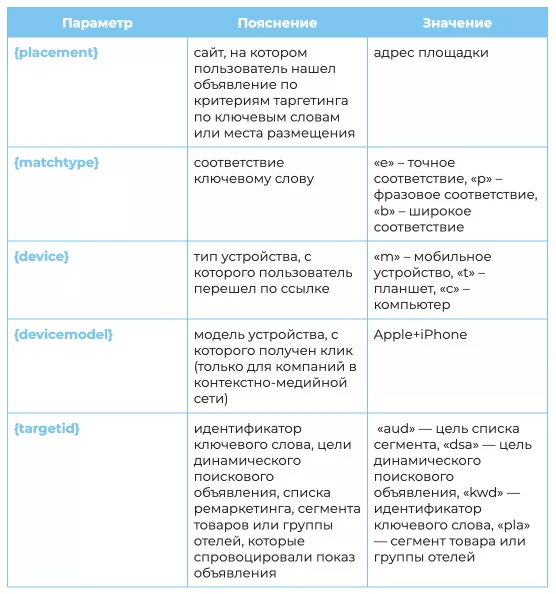
UTM tags and gclid in contextual advertising
There are two ways to track contextual advertising traffic in Google Ads:
- UTM tags. They are beneficial to use when an advertising campaign takes place across several advertising systems, as they are universal.
- The gclid (Google Click Identifier) function . The advantage of gclid is that these marks are added automatically, so you don’t need to add anything manually.
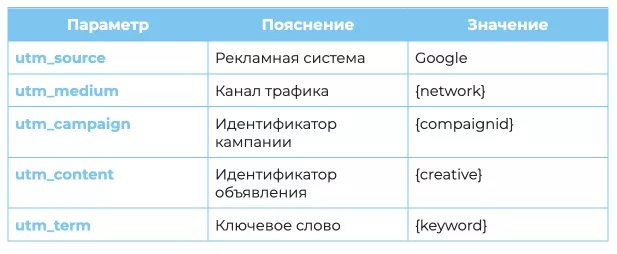
Example with UTM tags for Google Ads:

What does the marking mean:
Targeted advertising
When running social media advertising, it’s important to understand which campaigns performed best and generated more users. This will help you better manage your advertising budget: disable ineffective ads and increase your budget for more profitable campaigns.
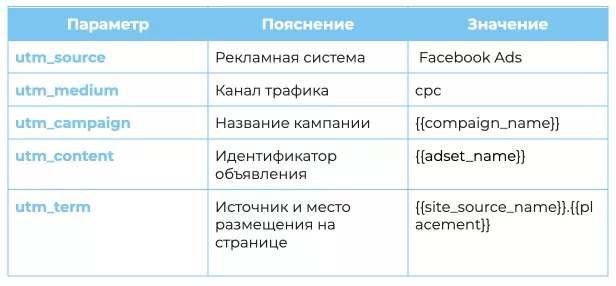
Example with UTM tags for Facebook (Meta) Ads:

What does the marking mean:
UTM tags in email newsletters
If a company uses email marketing, UTMs can help them understand which emails are most effective.
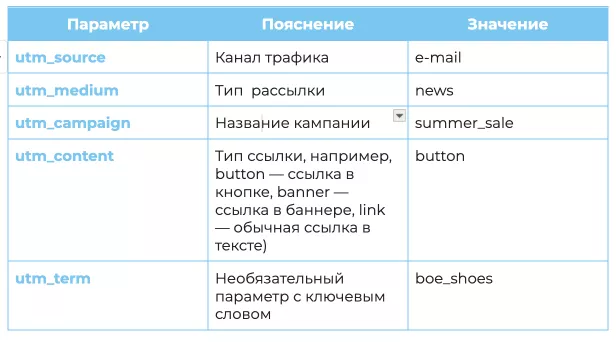
Example of UTM tags for links in emails:

Markup meaning:
UTM tags for QR codes
UTM tags are a universal feature for tracking traffic. They can also be used to track offline traffic, such as QR codes.
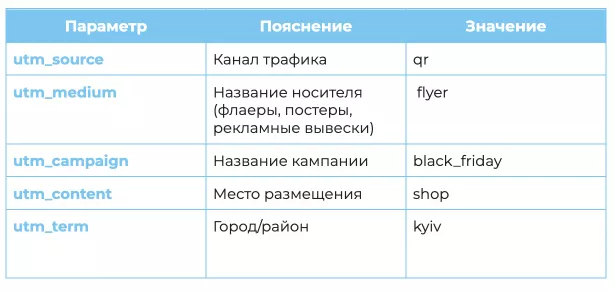
Example of a URL with UTM tagging for QR codes:

What does the marking mean:
UTM tags for natural links
UTM tags can also be used to better track traffic from guest posts, mentions, and other types of natural link placements.
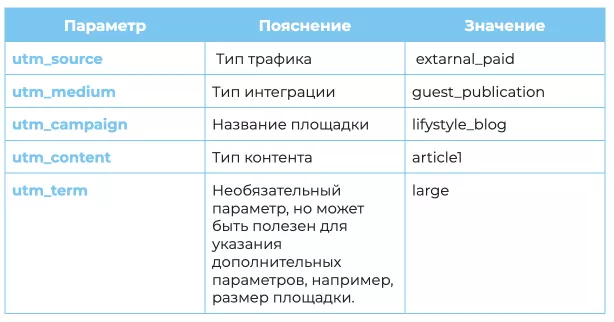
Example of UTM tags for a link in a guest post:

What does the marking mean:
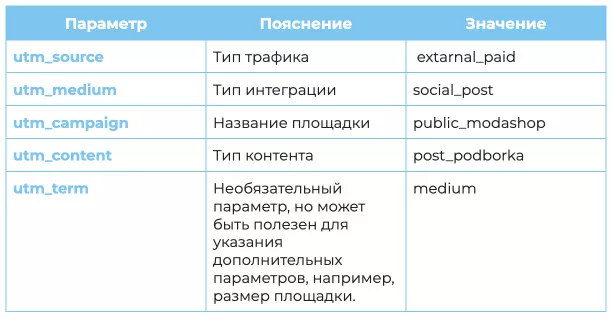
The markup for a link in a social media post will be slightly different:

Where:
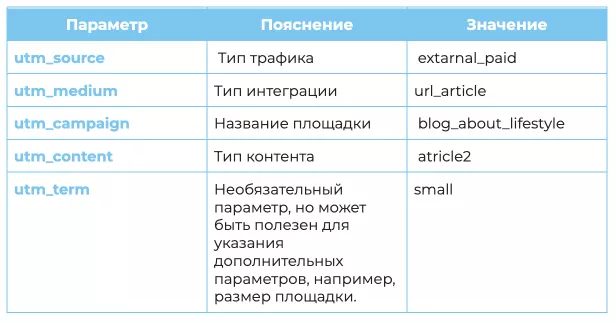
An example of UTM tagging for a link added to an existing article:

Where each parameter denotes:
How to view UTM tag statistics in GA4
It’s easy to view UTM statistics in Google Analytics 4. To do this, you need to complete a few steps.
- Go to the “Traffic Sources” section.
- Open “Traffic Attraction”.
- In the table, select the “Session Source/Channel” parameter.
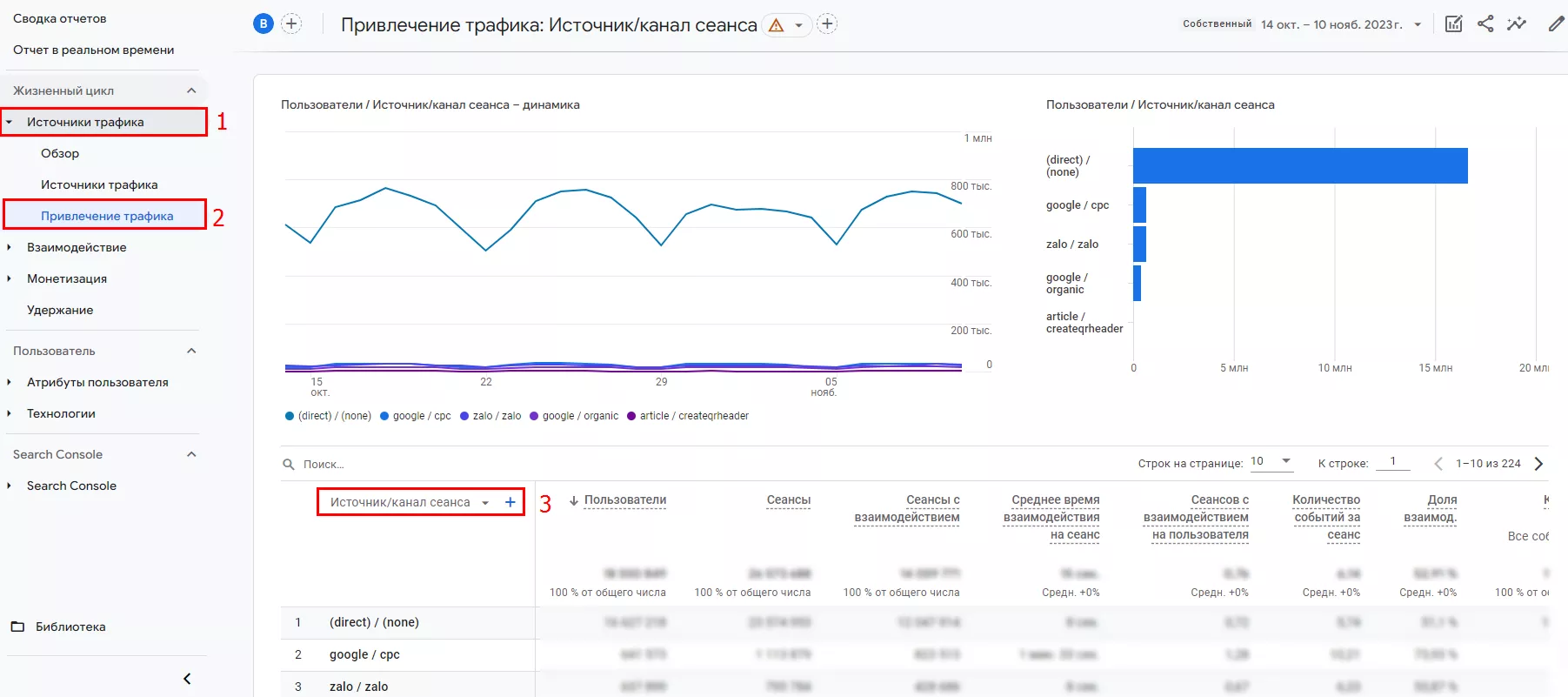
In the report, sources are designated by the utm_source parameter, and channels are designated by the utm_medium parameter. To see data for utm_campaign , select the “Session-Related Campaign” parameter.
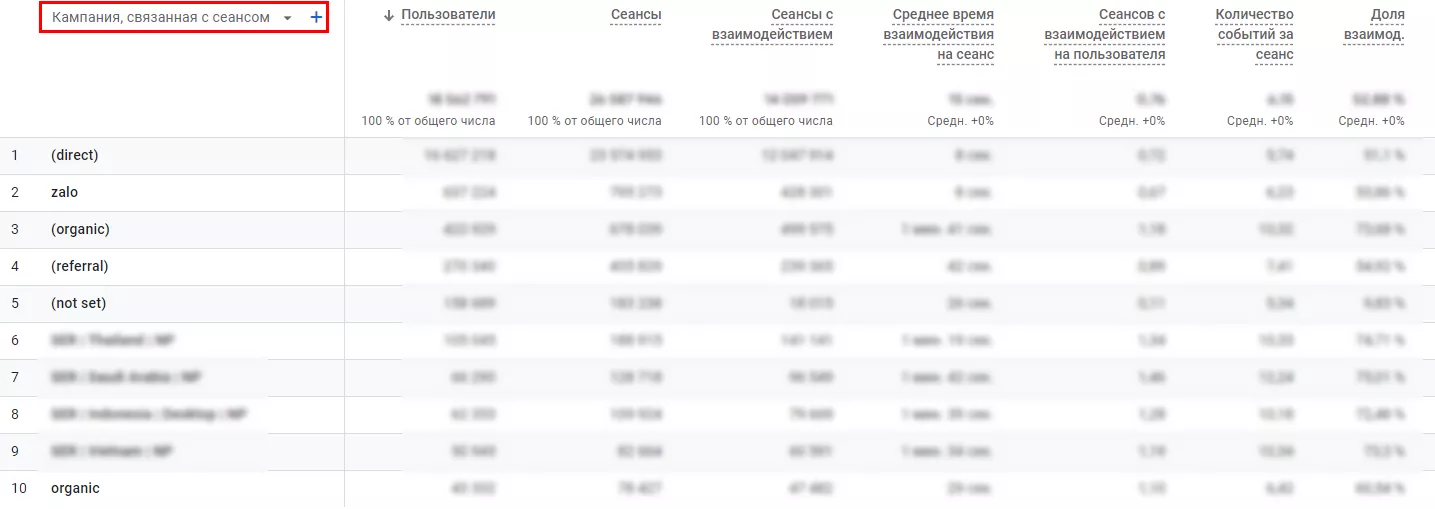
More detailed information can be found in Google Help .
How to Generate UTM Tags — Google Generator and Google Sheets
Google UTM Generator
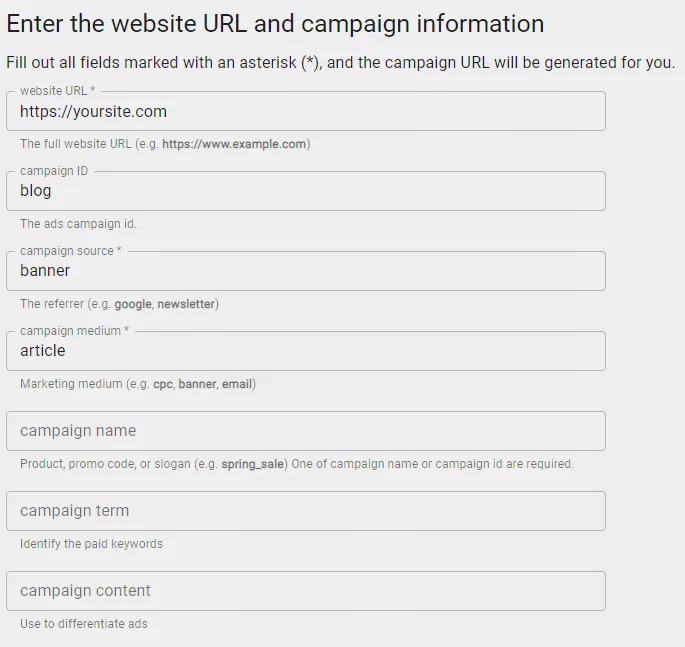
Google’s UTM generator is very easy to use. Just fill out three required form fields.
- Website URL – link to the site.
- Campaign Source – The platform or source of traffic, such as Facebook or email.
- Campaign Medium — traffic type, such as CPC, social media, or QR code.
There are also optional fields.
- Campaign ID — advertising campaign identifier.
- Campaign Name — the name of the advertising campaign.
- Campaign Term – Primarily used for tracking keywords in Google Ads.
- Campaign Content is a useful metric for A/B testing where you can specify additional parameters.
Example of filling in data in the form:
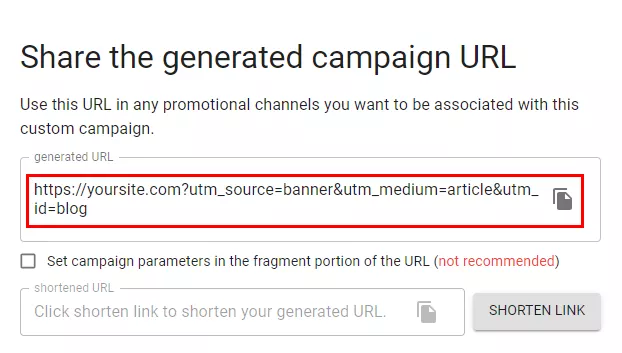
The result is a link:
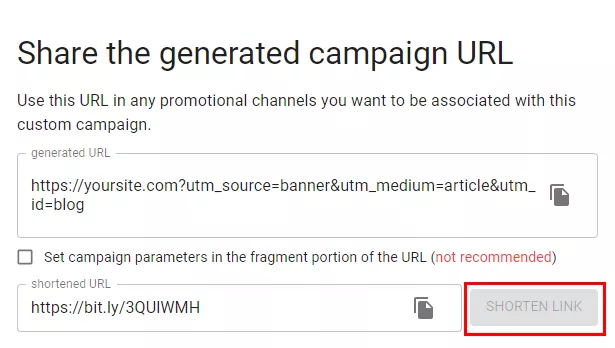
You can use the “SHORTEN LINK” button to shorten the link:
There are also other Google generators, depending on where the data is collected—Google Analytics 4, Google Play, or the Apple App Store. Detailed information about each of them can be found in Google Help .
Templates in Google Sheets
Another simple method is to use the CONCATENATE formula to generate a template in Google Sheets . Enter the URL in the template, add the required data from the list, and grab the resulting link:

Useful tips and tricks for working with UTMs
1. Shorten links
To make your links less cumbersome, use specialized shortening services. Here are the most popular ones:
2. Standardize names
There are no strict rules for what UTM tags should be: they can be customized to suit your needs. However, despite this flexibility, it’s important to create your own system of tag construction rules to ensure proper analysis.
This is especially important for large teams where several people are involved in creating and analyzing UTM tags. Imagine a situation where one person uses a hyphen and another uses an underscore. For the analytics system, these would be two separate links.
It’s worth creating a design guide for labels. Here are some styling tips.
- Use lowercase . UTM parameters are case-sensitive. To avoid data tracking issues, always write UTM parameters in lowercase.
- Don’t use spaces because this may cause “paid social” to show up in analytics as “paid%20social”.
- Use consistent separators. Whether you use an underscore, a hyphen, or ignore the separator entirely is not important, as long as you stick to a consistent method.
- Keep UTMs short and simple. This will make life easier when analyzing traffic, both for you and for your colleagues who did not participate in creating the tags.
3. Track UTM links in tables
The number of tracked links tends to increase. Tracking links in a table will help you quickly find them and avoid duplicates. It’s most convenient when the table has columns for shortened links, full URLs, individual UTM parameters, and the creation date of the tracked links. You can use ready-made free templates for tracking links .
4. Copy links carefully
If you mistakenly copy a link with UTM tags and paste it in the wrong place, you can create chaos in your traffic tracking.
If you use UTM codes, carefully check whether the links you insert contain UTM parameters. This is a necessary step to ensure accurate traffic analysis.
5. Use UTM parameters for marketing experiments
Using UTM codes, you can conduct an experiment to test your hypothesis. For example, determine which illustrations perform better: product photos or images of real people.
To do this, post two identical posts: one with a graphic image and one with a photograph. In the utm_content section, assign the “graphic” tag to one link and “photo” to the other. You’ll soon find out which images attract more attention.
6. UTM tags for local SEO
Using UTM parameters, you can easily estimate the amount of traffic your Google My Business profile is attracting. Adding UTM tags to links in your Google My Business profile is a simple process.
You can track links to the home page, menu, orders, appointments, and all other sections provided to GMB users using UTM parameters.
7. Track influencer traffic
The effectiveness of influencer collaboration can be difficult to evaluate, especially when comparing the effectiveness of campaigns from different sources. But UTM tags can help. Simply provide influencers with personalized links with UTM tags to understand which ones are driving the most traffic and what portion of that traffic is converting.
Common Mistakes in UTM Markup
1. Incorrect syntax.
If you specify many parameters, use label generators to avoid errors.
2. Using only static parameters.
This can be very time-consuming to generate tags, especially if you’re testing identical ads or banners. Use dynamic parameters to avoid manually entering all ad IDs into utm_content .
3. Duplicate pages in the index.
Search bots index all URLs available on a website, including those with UTM tags. Use rel=canonical for links to pages without UTM tags, so duplicate URLs containing UTM tags won’t be indexed.
4. Marking internal links with UTM tags
Internal link tagging on a website can lead to a false increase in traffic in analytics, as UTM tags overwrite the traffic source.
For example, a user clicks an advertising link from social media, and analytics will record this. But if this user then clicks a tagged internal link, the last channel and source will be overwritten by the one specified in the UTM (this is how GA works). This results in incorrect analytics data.
Use UTM parameters only for external links.
5. Incorrect placement of the anchor “#”
When a link needs to lead to a specific location on a page, the anchor “#” is used. To properly track such a link, UTM parameters must be specified before this symbol.
Wrong:

Right:

Use these “golden rules” to make working with UTM tags easier once and for all:
- source, medium, campaign – these are the main parameters that need to be filled in first;
- Do not use Cyrillic characters, write all values in Latin ;
- case matters – the same values with different case will be shown in different rows in analytics;
- words are always separated by a hyphen or underscore;
- spaces in the link are not allowed;
- Check links before publishing : copy and paste them into your browser. If the page loads, everything is fine;
- use one marking system ;
- the site must support UTF-8 ;
- The label should contain only one question mark (?) – at the very beginning.
Results
- UTM tags are a useful tool for marketers that can help them evaluate the effectiveness of various advertising campaigns.
- Essentially, this is a link to a resource with unique tags, placed in a specific advertising campaign and allowing you to clearly determine how many clicks it generated.
- UTM tags will help you identify traffic sources on your website more accurately.
- The tag requires specifying a parameter and its value. Three mandatory parameters are utm_source (referral source), utm_medium (advertising channel), and utm_campaign (specific campaign). There are also optional parameters that can provide even more traffic data.
- To automatically tag URLs with the necessary tags, use dynamic parameters. They make the link more cumbersome but help prevent errors.
- Google Ads has its own automatic markup. It’s worth using if you’re running ads in only one direction.
- You can create tags using special generators and track the results in Google Analytics 4.
Source: NETPEAK JOURNAL