
When reviewing a project, an SEO specialist always enters “sitemap.xml” into the address bar. Sitemap analysis helps determine why certain content isn’t being indexed.
- What is an XML sitemap?
- What are the types of XML Sitemaps?
- How to find an XML sitemap
- What elements does an XML Sitemap consist of?
- What elements does an XML Sitemap consist of?
- Google's XML Sitemap File Guidelines and Information
- Bing XML Sitemap File Overview and Recommendations
- How to Build an XML Sitemap for Multilingual Websites
- XML Sitemap for images
- XML Sitemap for Video
- News sitemap
- How to implement a sitemap
- XML Sitemap Errors
- Life hack
- Conclusions
What is an XML sitemap?
An XML sitemap is a file for search engine bots that lists all the website pages in XML format. It helps search engines crawl and index the website content more effectively.
💡 Don’t confuse XML-Sitemap and HTML-sitemap for website users.
What are the types of XML Sitemaps?
Two types of sitemaps:
- regular – contains no more than 50,000 pages and weighs no more than 50 MB;
- Index – a map file that combines several regular sitemaps. Created for large or
- multilingual sites. Such files are no more than 50 MB in size and have a capacity of no more than 50,000 URLs.
How to find an XML sitemap
There are several ways to view the sitemap:
1. In the robots.txt file. Enter the following in the address bar: https://site.com/robots.txt. The file itself may contain an XML Sitemap directive in the following format: sitemap: https://site.com/sitemap.xml
2. If you couldn’t find a link to the file in robots.txt, enter the following query in the address bar: https://site.com/sitemap.xml
💡 While the URL format for the Robots.txt file is strictly required — /robots.txt — the URL for the Sitemap.xml file can be any.
/sitemap.xml is just a more popular name for the XML sitemap, but it can be different, for example: /sitemap-categories.xml, /sitemap-en.xml and so on.
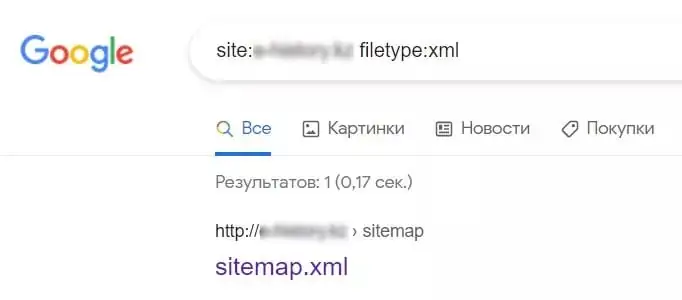
1. You can also perform a search query using search operators. You need to use two operators:
- site: — searches by exact address;
- filetype: – searches for the required file type;
To search for an XML file, you need to create a search query:
site:site.com filetype:xml
Result:
What elements does an XML Sitemap consist of?
As we already know, a sitemap can be either regular or indexed. Below we will consider what elements each of these types consists of.
Elements of a typical sitemap
Required elements:
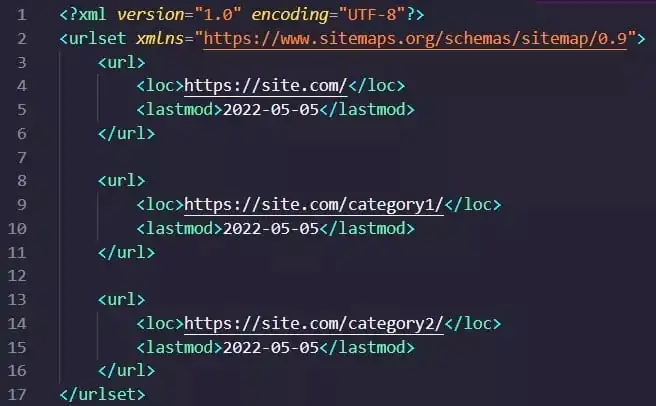
- The first line specifies the XML version and the required encoding for sitemap files—UTF-8:

— a tag that specifies the current protocol standard. It is the parent tag of the tags listed below; — a tag for each URL entry. It is a parent of the tags listed below and a child of ; — a tag that specifies the exact URL of a page. It is a child of .
Optional elements:
— a tag that indicates the last date the page was updated. It is a child of . Unlike the previous tags, this is optional. Please note that Google only considers the value of this tag if it matches the actual time of the last page refresh. When writing the date in this tag, you should use the W3C Datetime format. This format requires specifying the full date with hours, minutes, seconds, and time zone (YYYY-MM-DDThh:mm:ss+TZD). For example: 2022-05-16T19:20:30+03:00; — a tag that indicates the approximate frequency of page refreshes. Valid values: always, hourly, daily, weekly, monthly, yearly, never; — a tag that indicates the priority of a page compared to other pages. The value ranges from 0.0 to 1.0.
💡 According to the latest data from Google Search Center, the search engine does not take tag values into account< changefreq> And< priority> .
XML sitemap example:
What elements does an XML Sitemap consist of?
There are several ways to create a sitemap:
- Using a content management system (CMS). Systems like WordPress or Wix can generate a search-engine-accessible sitemap. You’ll need to find out how your CMS generates a sitemap—whether it’s automatic or requires some additional steps.
- Manually. If the site is small, you can create the sitemap yourself using a text editor and adhering to syntax standards;
- Using third-party generators. There are many services that can generate sitemaps. Among them:
- https://www.mysitemapgenerator.com/ ;
- XML sitemap generator from https://smallseotools.com/ (the free version is limited to 500 pages);
- https://www.xml-sitemaps.com/ .
Of course, there are many such generators, you can find one that suits you.
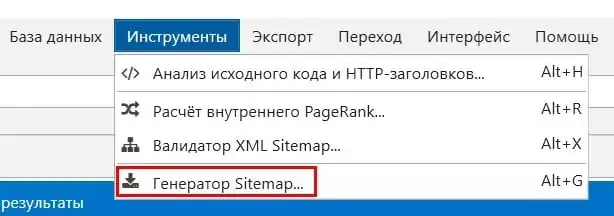
- Using Netpeak Spider , follow these steps:
- Crawl the required number of URLs.
- Open the Sitemap Generator tool.
Google’s XML Sitemap File Guidelines and Information
- Google will crawl the URLs you provide, so please make sure you provide correct and accurate URLs.
- All URLs you specify in the sitemap must be on the corresponding domain. Do not specify a different domain or subdomain.
- A sitemap can be placed anywhere on the website, but it will only affect directories below the parent directory. Therefore, the XML Sitemap should be placed in the website’s root directory.
- A link to a regular XML file or an index file can be specified in the Robots.txt file as follows: sitemap: https://site.com/sitemap.xml.
- Sitemaps must be created in UTF-8 encoding, meaning they must use only ASCII characters.
- If your page addresses contain other characters, they must be escaped. This usually happens automatically unless you create page addresses manually. If characters in your URL are improperly encoded and escaped, you may receive a Google alert when you add your sitemap that the pages in your XML sitemap were not found.
- Google doesn’t guarantee that every URL in your sitemap will be crawled. This file only helps the system determine which pages you consider important.
- Google ignores the order of URLs in the sitemap.
- The XML sitemap file must be no more than 50,000 pages in size and no larger than 50 MB. If it is larger, create an index sitemap that will contain multiple sitemap files.
- Include in the XML Sitemap only canonical, indexable and crawlable pages that return a 200 response code, excluding pagination pages.
- All URLs in the XML Sitemap must be allowed in robots.txt for crawling, indexing, and not contain the \”noindex\” meta tag.
The sitemap should be automatically updated regularly when specified pages are added/removed, closed/opened for indexing.
Bing XML Sitemap File Overview and Recommendations
Bing doesn’t describe any fundamental differences in its XML Sitemap requirements, merely paraphrasing some of the standards listed in Google’s guidelines. Therefore, we can conclude that by following Google’s standards, we are creating a universal XML Sitemap for Bing as well.
How to Build an XML Sitemap for Multilingual Websites
There are three main ways to indicate to search engines that multilingual versions of pages are not duplicates:
- The rel=”alternate” hreflang=”x” attribute in the page code is the most common method;
- using XML Sitemap;
- using http headers.
It should be noted that in 99% of cases, one way to indicate that a site is multilingual is sufficient: using the rel=”alternate” hreflang=”x” attribute.
💡 If you’re creating a sitemap for a large website, you can additionally specify multilingual support using XML-Sitemap.
To specify alternative language versions of a page in an XML Sitemap, you must:
- specify a namespace in a block
:
xmlns:xhtml=\”https://www.w3.org/1999/xhtml\”
- within the tag
, below the tag , which specifies the page URL, specify the tag for each language version of the page, and within — rel=\”alternate\” hreflang=\”x\” attributes, which will indicate a specific language version.
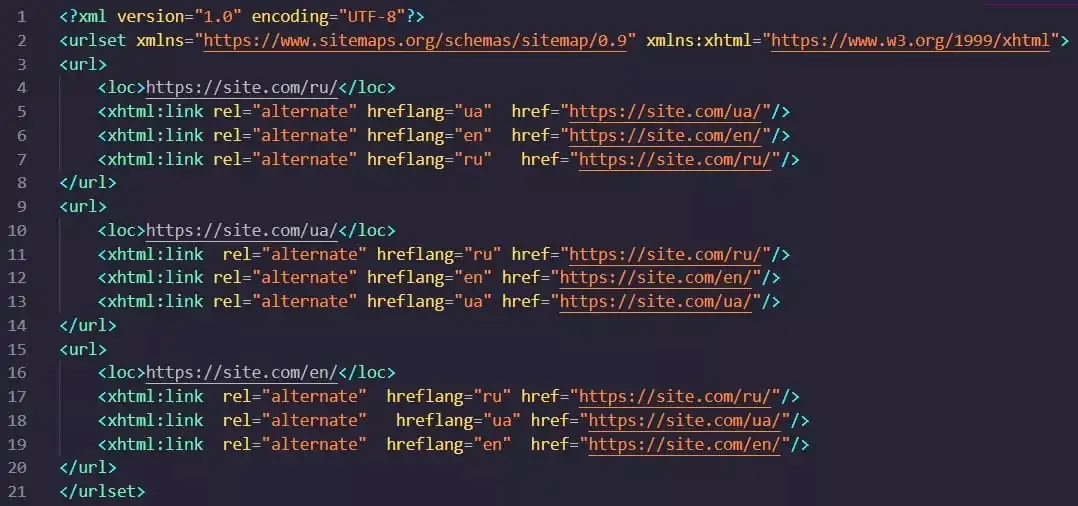
For example, a page has three language versions: Russian, Ukrainian, and English. The URLs for the language versions of this page look like this:
- https://site.com/ru/
- https://site.com/ua/
- https://site.com/en/
In XML-Sitemap, multilingual versions of the page will look like this:
XML Sitemap for images
In some cases, search engines can’t find images on a website. For example, when an image is loaded using JavaScript. There are two ways to point search engine crawlers to images:
- Specify links to them in a regular XML Sitemap.
- Create a separate sitemap for images.
In both cases, you must specify the XML namespace in which the tags for the images are defined:
xmlns:image=\”http://www.google.com/schemas/sitemap-image/1.1\”
Also within the tag
— contains all the information about the image. Up to 1000 images can be specified per page. — file location. In some cases, the image URL may differ from the site’s main domain. To ensure proper content crawling in such cases, both domains must be verified in Google Search Console.
You may also find optional tags in the XML sitemap for images that, according to Google Search Center, are not taken into account by the search engine, namely:
— image caption; - <image:geo_location> — location of shooting (country, city, etc.);
— image title; — Image license URL.
In addition to these tags, the image sitemap must meet the following requirements:
- the encoding used is UTF-8;
- An XML sitemap for images should contain no more than 50,000 URLs and be no larger than 50 MB. If the sitemap exceeds these limits, a sitemap index file must be created.
- This type of sitemap should only contain canonical pages that are open for indexing and crawling and that return a 200 response code;
- each URL has no more than 1000 images;
- XML sitemap for images should contain only full-size images without thumbnails;
- A link to an XML sitemap for images or to an index file must be placed in robots.txt;
- The XML sitemap for images must be updated automatically and regularly.
An example of an XML sitemap for images that specifies one page and two images:

XML Sitemap for Video
A video sitemap is a way to inform search engines about the presence of videos on a page, especially if they’re newly added or hard to find. This is an important aspect of search engine optimization, especially if you want your videos to appear in search results.
General information and recommendations from Google regarding XML Sitemap files for videos:
- The encoding used is UTF-8.
- Each video sitemap file can contain up to 50,000 video elements and be no larger than 50 MB. If you exceed these limits, you can, as with basic sitemaps, create an index file containing information about regular XML sitemaps for videos.
- You can create a separate XML sitemap for the video or insert information about the video into a regular sitemap.
- It is allowed to list multiple videos on one page.
- Don’t include information about videos that aren’t related to the page’s main content. Otherwise, the video may not be indexed by search engines.
- Googlebot ignores a Sitemap entry if no video is found at the specified URL.
- Creating an XML Sitemap for a video does not guarantee that the files will be indexed.
- The pages specified must be canonical, open for indexing and crawling, and return a 200 response code.
- Googlebot must have access to both the video file and the player. They should not be placed on pages that require authorization, blocked in robots.txt, or otherwise blocked.
- Place a link to the XML sitemap or index file in robots.txt.
- The XML sitemap for videos should be updated automatically and regularly.
Let’s look at what elements an XML Sitemap for video consists of.
First, you need to specify the namespace in which the tags will be defined:
xmlns:video=\”http://www.google.com/schemas/sitemap-video/1.1\”
When creating a sitemap of this type, you must also specify the following mandatory tags:
— a tag that specifies the current protocol standard. It is the parent tag of the tags listed below; — a tag for each URL entry. It is a parent of the tags listed below and a child of ; — a tag that specifies the exact URL of a page. It is a child of ; - <video:thumbnail_loc> — link to the video icon;
— video title; — video description, no more than 2048 characters; - <video:content_loc> — the actual address of the video;
- <video:player_loc> — link to the video player;
You can also specify recommended tags:
— video duration in seconds, in the range from 1 to 28800 (8 hours) inclusive; - <video:expiration_date> — a tag that specifies the date and time the video will become unavailable. Don’t add this tag if you don’t want the video to become unavailable in Google search. The date must be specified in W3C format.
Optional tags:
— video rating. Specified in the range from 0.0 to 5.0; - <video:view_count> — number of video views;
- <video:publication_date> — date of video publication in W3C format;
- <video:family_friendly> — information about whether the video is available in SafeSearch. If the tag is omitted, the video will be available in SafeSearch. Acceptable values: “yes” or “no”.
— a tag used to block or allow video display in specific countries. Without this tag, the video will be allowed in all countries. To block a video from displaying in a specific country, include the “relationship” attribute in this tag and specify a value of “allow” (yes) or “deny” (no). Here’s an example of code that blocks a video from appearing in search results in Canada: CA ;- <video:requires_subscription> — indicates whether a subscription is required to view the video. Acceptable values: “yes” or “no”;
— the name of the user who uploaded the video. Only one uploader name can be specified per video. You can also specify a link with information about the uploader in the info attribute (optional); — indicates whether the video is a live broadcast. Acceptable values: “yes” or “no”; - <video:tag> — Video tags. You can specify up to 32 tags for a single video.
Google has listed the attributes it no longer takes into account:< video:category> ,< video:gallery_loc> , autoplay and allow_embed tag attributes - <video:player_loc>, as well as tags
And .
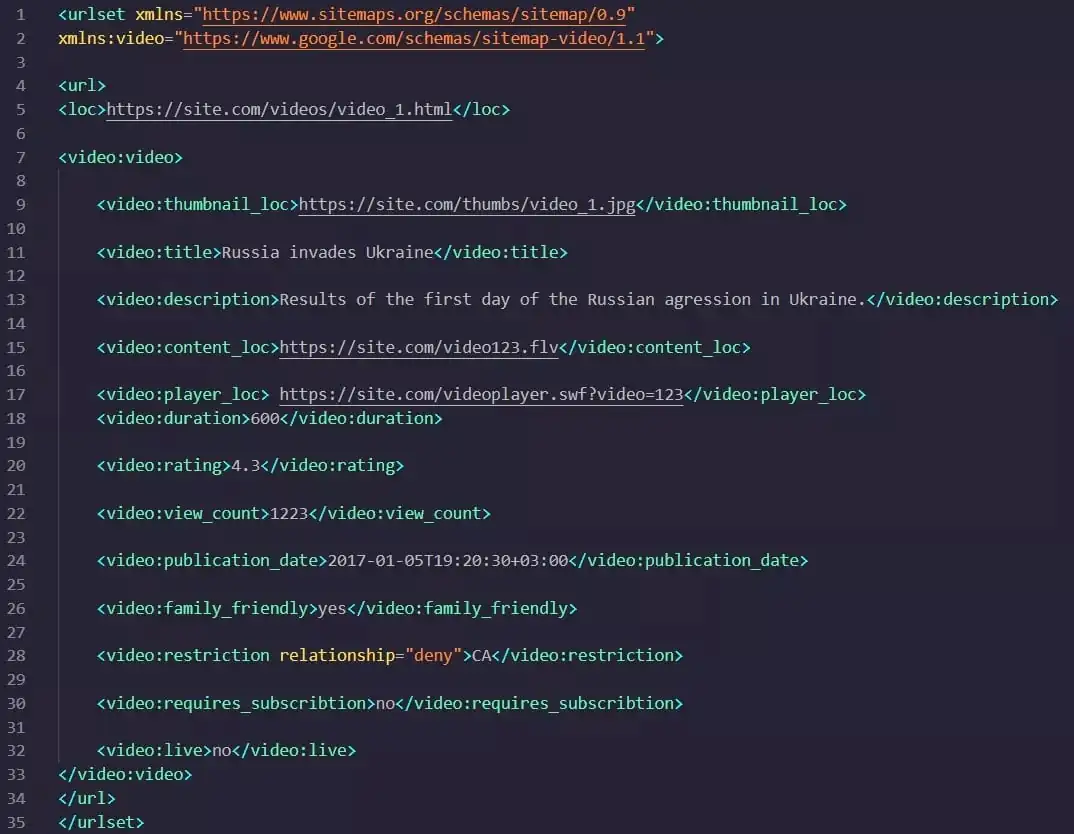
What a video sitemap might look like:
News sitemap
For news sites, you can create a separate dynamically generated map that is updated daily. These files will only work for resources included in Google News lists. If a site isn’t listed, you can submit a request to add it.
The sitemap file should contain only URLs of articles published within the last two days. Articles published more than two days ago can be removed from the file, but they will remain in the Google News index for 30 days.
This sitemap can contain no more than 1,000 URLs. This limitation is due to the fact that XML sitemaps for Google News are crawled more frequently than regular sitemaps, thus preventing the search engine from overloading them. If more content is added to the site within two days, a sitemap index file can be created for multiple sitemaps.
Google recommends updating the XML sitemap for Google News as new content is published. This sitemap should be placed either in the root directory or in the news section of the site.
Key elements of a news sitemap:
- namespace for news sitemaps:
xmlns:news=\”http://www.google.com/schemas/sitemap-news/0.9\”
Required tags:
— parent tag for all news tags; — the publication that published the article. Contains two required child elements:
— title of the publication; - <news:language> — language in ISO 639-1 format;
- <news:publication_date> — the exact date in W3C format;
— the title of the article, which should be indicated in the same form as on the website.
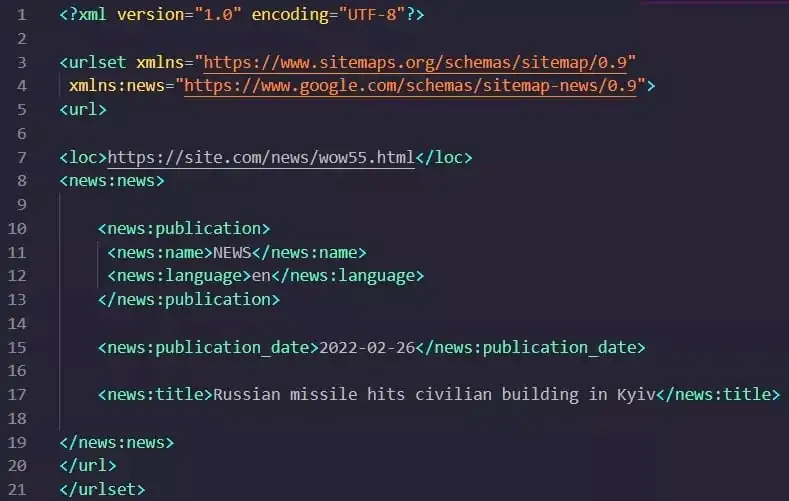
Example sitemap for Google News:
How to implement a sitemap
There are several ways to point a search engine to an XML Sitemap:
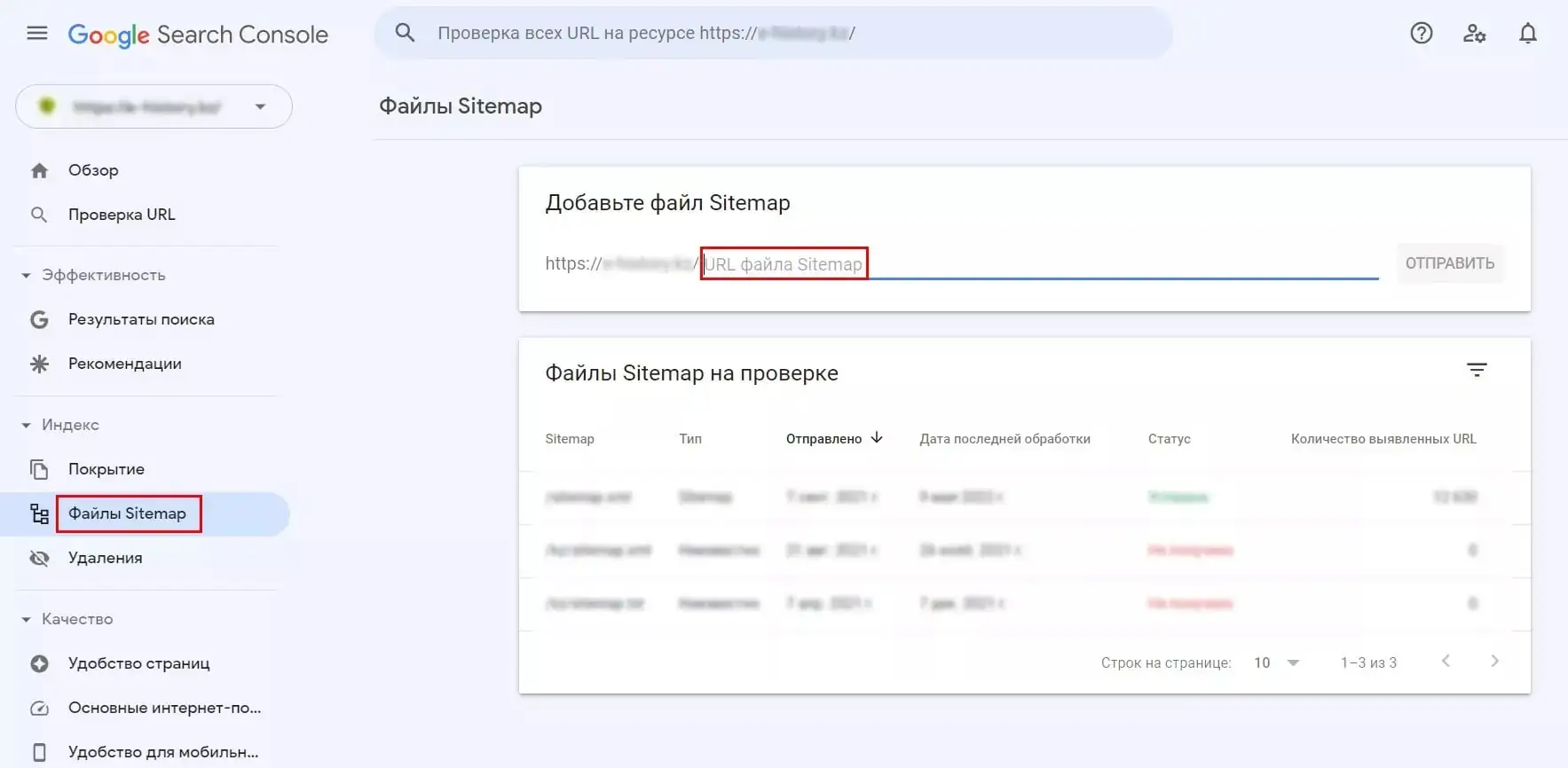
- using Google Search Console;
- perform a ping request – send a GET request to the specified address, specifying the full URL of your XML Sitemap:
https://www.google.com/ping?sitemap=FULL_URL_OF_SITEMAP
Where:
FULL_URL_OF_SITEMAP — the full address of the XML sitemap.
For example:
https://www.google.com/ping?sitemap=https://site.com/sitemap1.xml
- Place the sitemap address in robots.txt—it will be found the next time the site is crawled. Example:
Sitemap: https://site.com/sitemap1.xml
The XML sitemap is parsed only when it’s first detected, not every time the site is crawled. If you make changes to the file, notify the search engine using a ping request.
XML Sitemap Errors
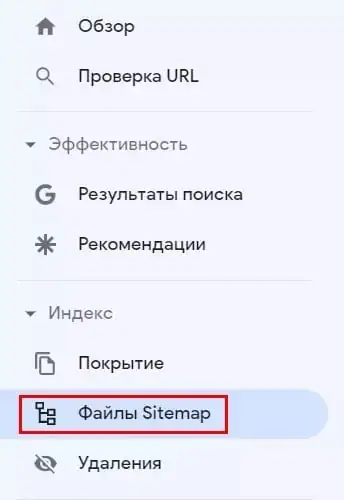
By following the instructions above, you can avoid common mistakes when creating a sitemap. If an error occurs while creating this file, you can see it in Google Search Console under “Sitemaps”:
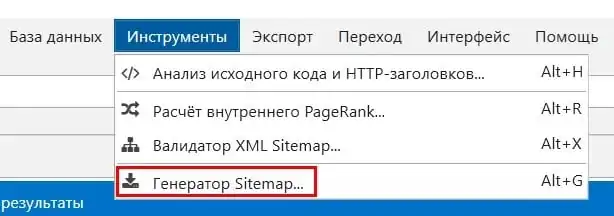
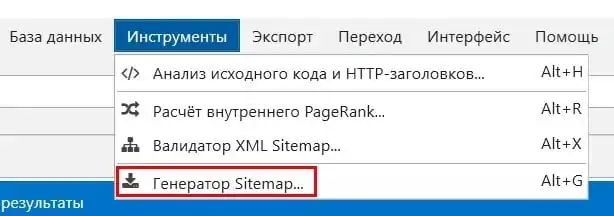
You can also check for errors using Netpeak Spider. To do this, select “Tools” – “XML Sitemap Validator”:
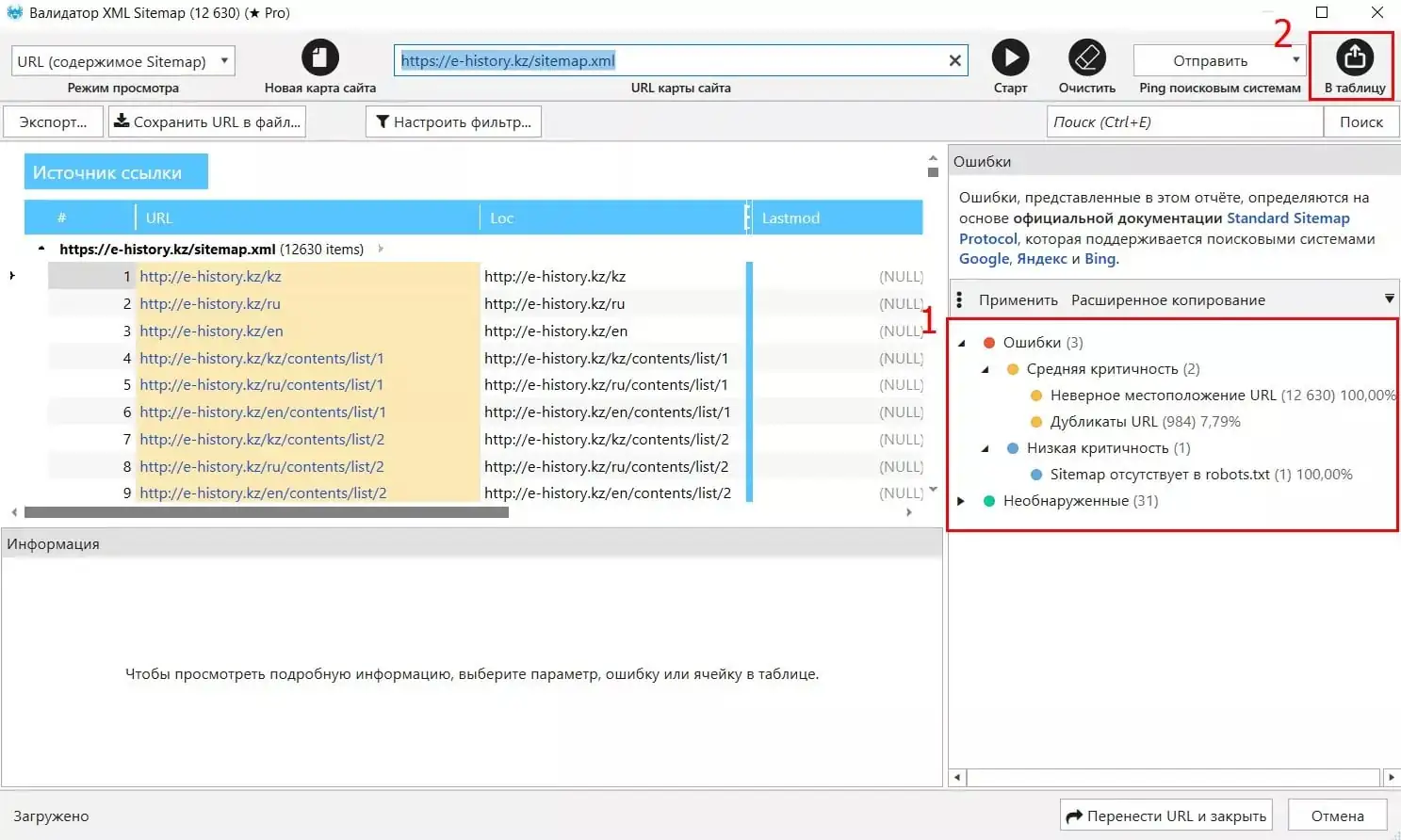
Paste the link to the appropriate sitemap and click the “Start” button:

After scanning, the validator will highlight errors in the sitemap (1). After clicking the “Add to table” button (2), the page URLs will move from the validator to the program’s workspace, where you can continue working:
Life hack
Some experts argue that large sitemaps aren’t always fully crawled and internal links aren’t always indexed quickly. There are some cases where setting sitemap capacity limits to 10,000 or 1,000 pages yielded more effective results.
It can be concluded that if you have specific problems with URL scanning and indexing on your site, or, for example, if you need to quickly get new product card pages into the index, you can try breaking your sitemap into smaller parts and adding them to the index sitemap.
It’s assumed that smaller lists of URLs are easier for search engines to process. However, sitemaps shouldn’t be broken down too finely, into tens of thousands of files, as Google Search Console only displays information on 1,000 sitemap URLs in its reports, meaning you may not receive XML sitemap URL data from GSC.
The size of each sitemap should be calculated based on the website’s size. Based on some case studies, it’s possible to test splitting sitemap files by section, number of URLs, and content recency.
Conclusions
An XML sitemap is needed by search engines to discover and index the necessary website pages. It contains the URLs of the website pages, as well as additional data related to them, such as their last update time. It’s crucial to adhere to the requirements for this type of file to ensure search engines crawl and index the necessary website pages in a timely manner.
Separate maps can be created for images and videos. XML markup can also be used for Google News.
Creating a sitemap manually is only worth it if your site is small, otherwise it can take a very long time.
Use CMS tools, generators, and other software to create sitemaps, and periodically check your XML for correctness.
Sitemaps should be updated regularly and automatically so that the search engine bot can index the latest versions of pages as quickly as possible after an update, or avoid crawling pages for which instructions and access rules have been changed.
Source: Netpeak.net